DevoraDb

Database client for Windows

One client for MySQL, PostgreSQL, MongoDB and Redis.

Browse tables, edit rows, write SQL and move data between servers. Connect directly or through an SSH tunnel, and import the connections you exported from Navicat.

Windows 10 or 11, 64-bit. Your passwords stay on your PC.

DevoraDb
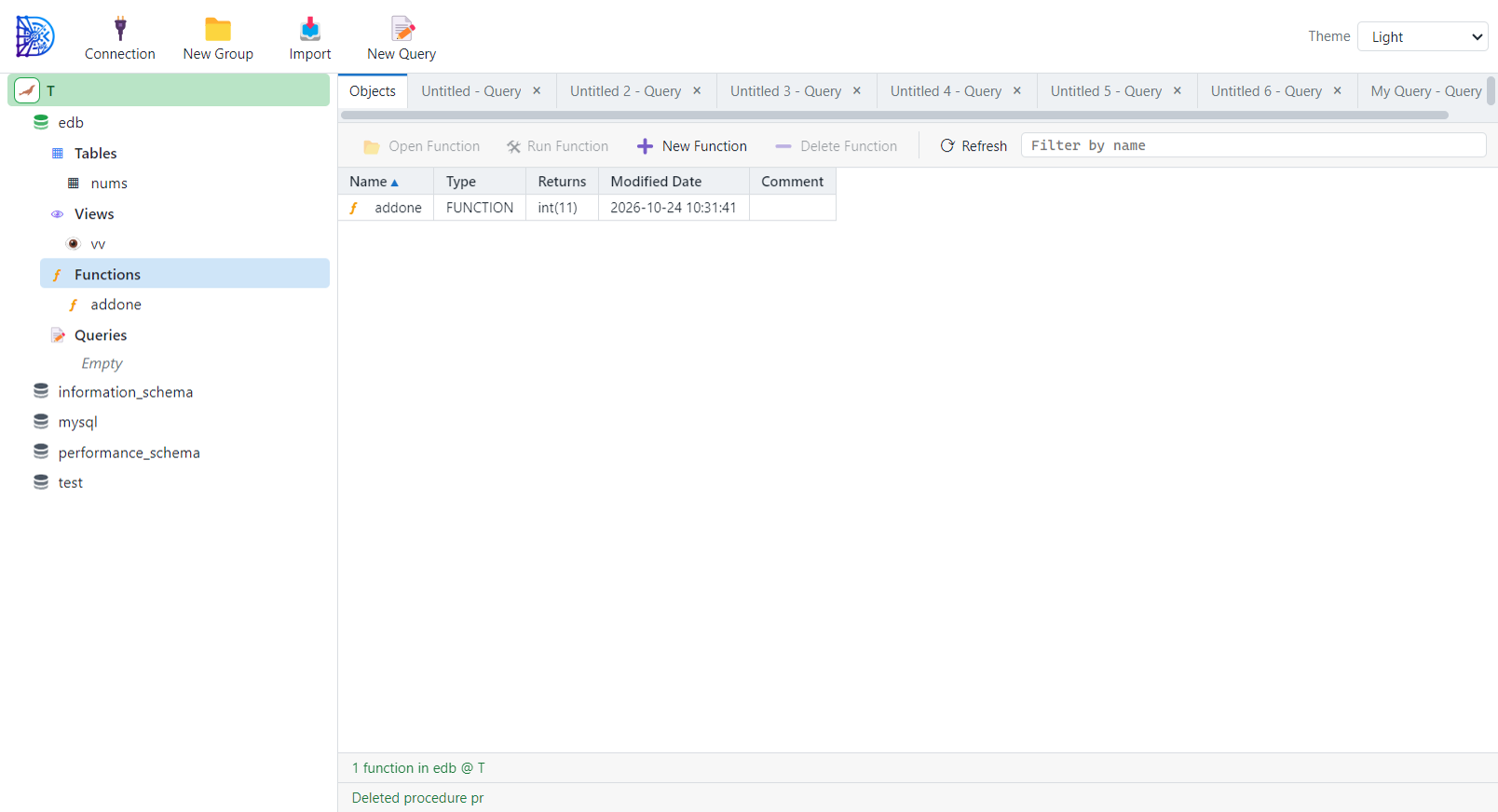
DevoraDb window. The sidebar lists a database with Tables, Views, Functions and Queries groups, and the Objects tab lists the functions.
MySQL / MariaDBport 3306
PostgreSQLport 5432
MongoDBport 27017
Redisport 6379
Amazon RDSMySQL and PostgreSQL
Amazon DocumentDBTLS and SSH ready

What you can do

Everything on the way from connection to result.

The parts you use every day are built in: a connection list that keeps projects together, an object browser, a table editor and a query editor.

Connections grouped by project

Pick the database type from a picker, fill in the host and credentials, and test it before you save. Put production, staging and dev connections into one folder named after the project.

  • SSH tunnels with password or key file
  • SSL options with CA, certificate and key files
  • Import from Navicat .ncx, export and import your own list
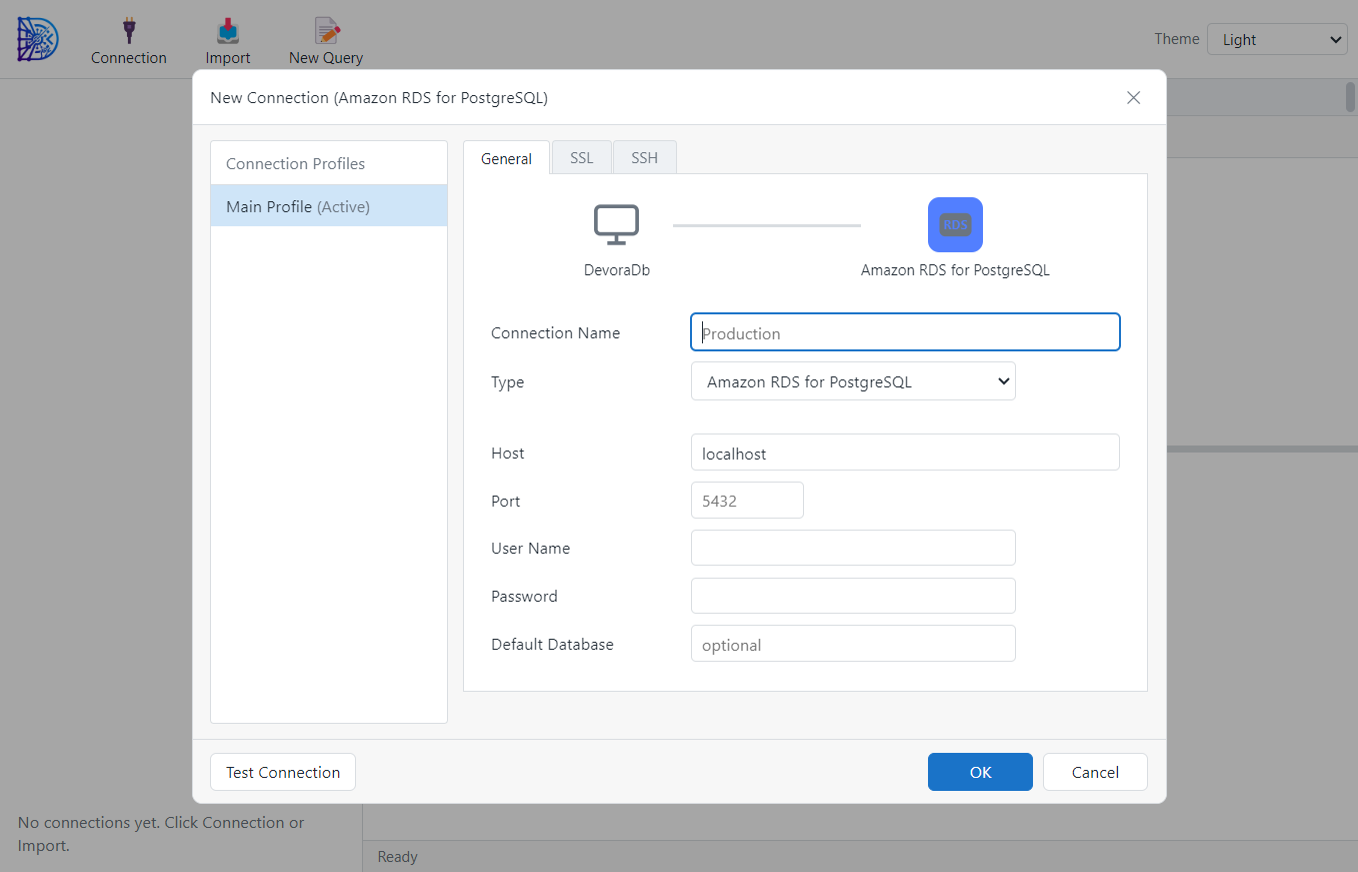
New Connection
The New Connection dialog for Amazon RDS for PostgreSQL with General, SSL and SSH tabs.

A query editor that reads like code

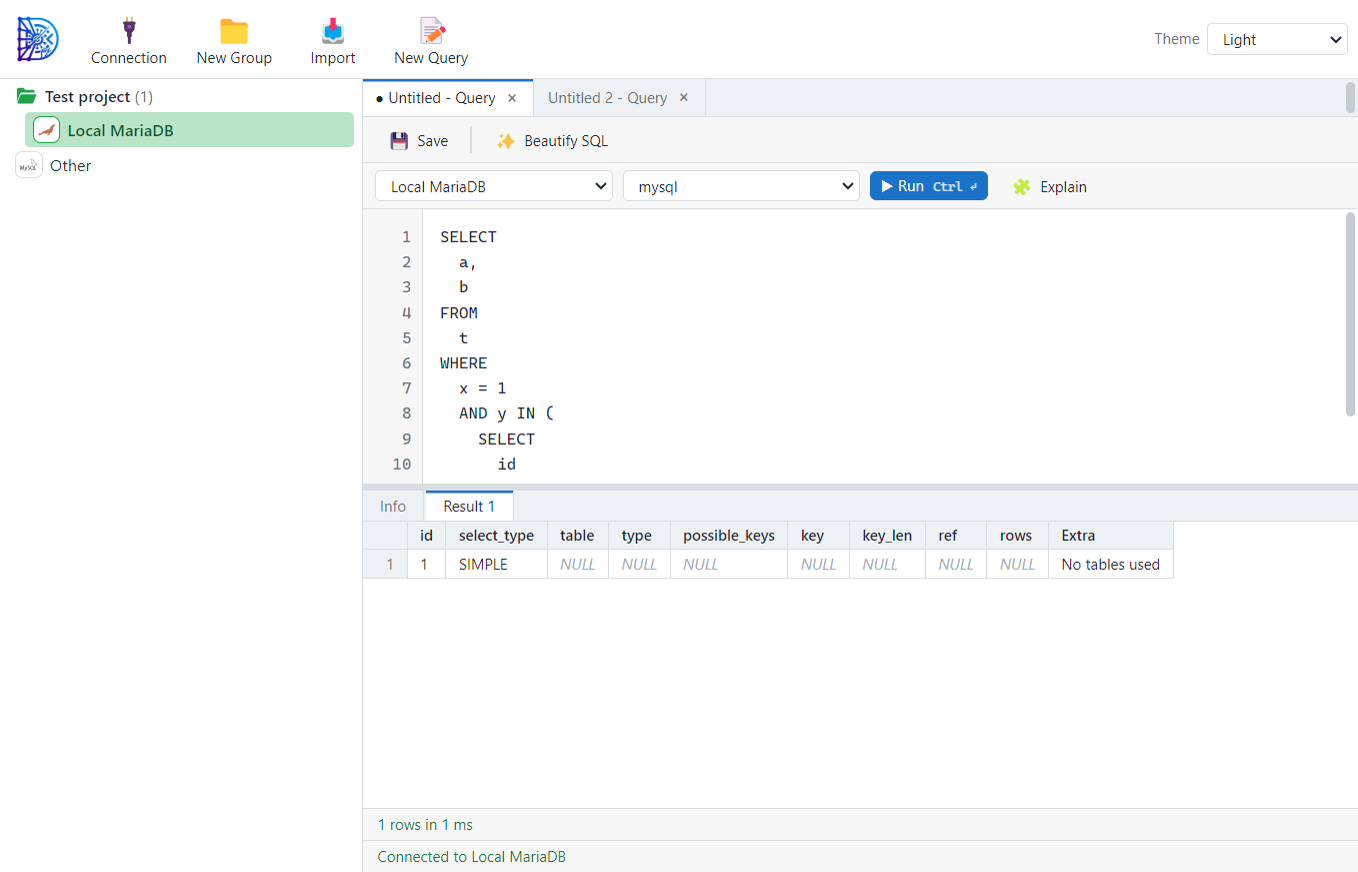
Run one statement or a whole script. Results open in tabs below the editor, with timing for each statement, and Explain shows the plan.

  • Syntax colors and line numbers
  • Visual Query Builder and one-click Beautify
  • Save queries by name for each database
  • Functions and procedures run from a parameter form
Query
A query tab with formatted SQL on top and the Explain result in a grid below.

Copy tables between servers

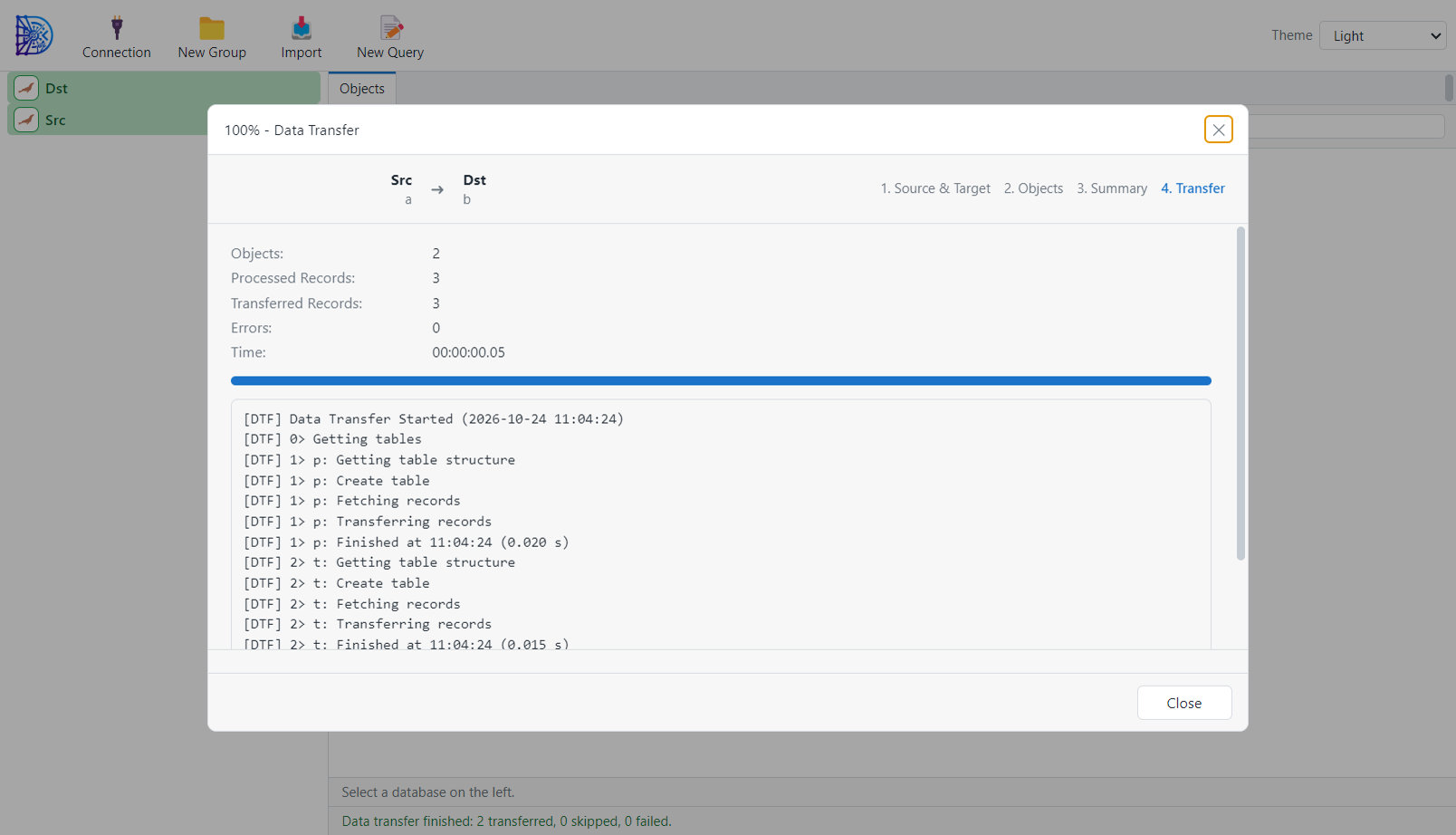
Data Transfer walks through source, tables and a summary, then shows live progress for every table. Paste a copied table into another connection and the wizard opens already filled in.

  • Structure and data, or either one
  • Drop and recreate, append or skip tables that exist
  • A log with rows moved, errors and time taken
Data Transfer
The Data Transfer wizard after a finished run, showing the progress bar and a summary of transferred tables.

Edit data in place

Change cells, add and delete rows, and save everything in one transaction. Filter and sort in a bar above the grid.

Table designer

Add, move and delete fields, set keys, indexes, foreign keys and triggers, with Ctrl+S to save.

Copy and paste

Copy rows, columns or a whole table with Ctrl+C and paste into another table or database.

Import and export

Bring CSV into a table, export results, and dump a database to a .sql file with or without data.

Tables, Views, Functions, Queries

Each database opens into four groups, the way you browse it in other clients.

Light and dark

Switch the theme from the toolbar. Native error and confirmation boxes follow Windows.

Install

Ready in about a minute.

Download the installer, run it, and add your first connection.

  1. Download the installerGet DevoraDb-Setup-0.1.0.exe from the button below.
  2. Run itIf Windows shows a blue SmartScreen box, click More info, then Run anyway. The installer is not code-signed yet.
  3. Choose a folderKeep the default or pick your own, then finish. Desktop and Start Menu shortcuts are added.
  4. Open DevoraDbClick Connection in the toolbar to add your first server, or Import to load a Navicat file.

Windows

Version
0.1.0
System
Windows 10 or 11, 64-bit
Size
83 MB
Updates
Run the newer installer over the old one. Connections stay.
Download for Windows

Questions

Before you install.

Where are my connections and passwords stored?

On your own computer, in the DevoraDb data folder of your user profile. Saved passwords are encrypted with the operating system's key storage. Nothing is sent to a server.

Can I move my connections from Navicat?

Yes. Export your connections from Navicat as an .ncx file and choose Import in DevoraDb. Include passwords in the Navicat export if you want them carried over.

How do I move my list to another PC?

Use File, Export Connections. Choose the connections or whole groups, decide whether to include passwords, and save the file. On the other PC use File, Import Connections.

How do I update to a new version?

Download the new installer and run it. It installs over the old version and keeps your connections, groups and saved queries.

Does it work with PostgreSQL, MongoDB and Redis as fully as MySQL?

MySQL and MariaDB have the most complete support, including Data Transfer and the object groups. PostgreSQL, MongoDB and Redis connect, browse and run commands, and some features are still catching up.

Why does Windows warn about an unknown publisher?

The installer is not code-signed yet. Choose More info, then Run anyway.